When one thinks of editing photos, we typically jump straight to software options like Photoshop or Lightroom. While these are fantastic options, they are both are quite expensive and require a moderately fast computer to run on. This can be a deterrent for someone who wants to quickly edit or touch up a photo.
Fortunately there are some great alternatives out there that are completely free and require no downloading of software! This is where an online photo editor comes into frame (pun intended 😉).
So after a lot of research and testing, I have rounded up what I believe are some of the best free online photo editors for creators and photographers. Ok, lets get stuck in!
Top 12 Best Free Online Photo Editors
1. Pixlr Editor
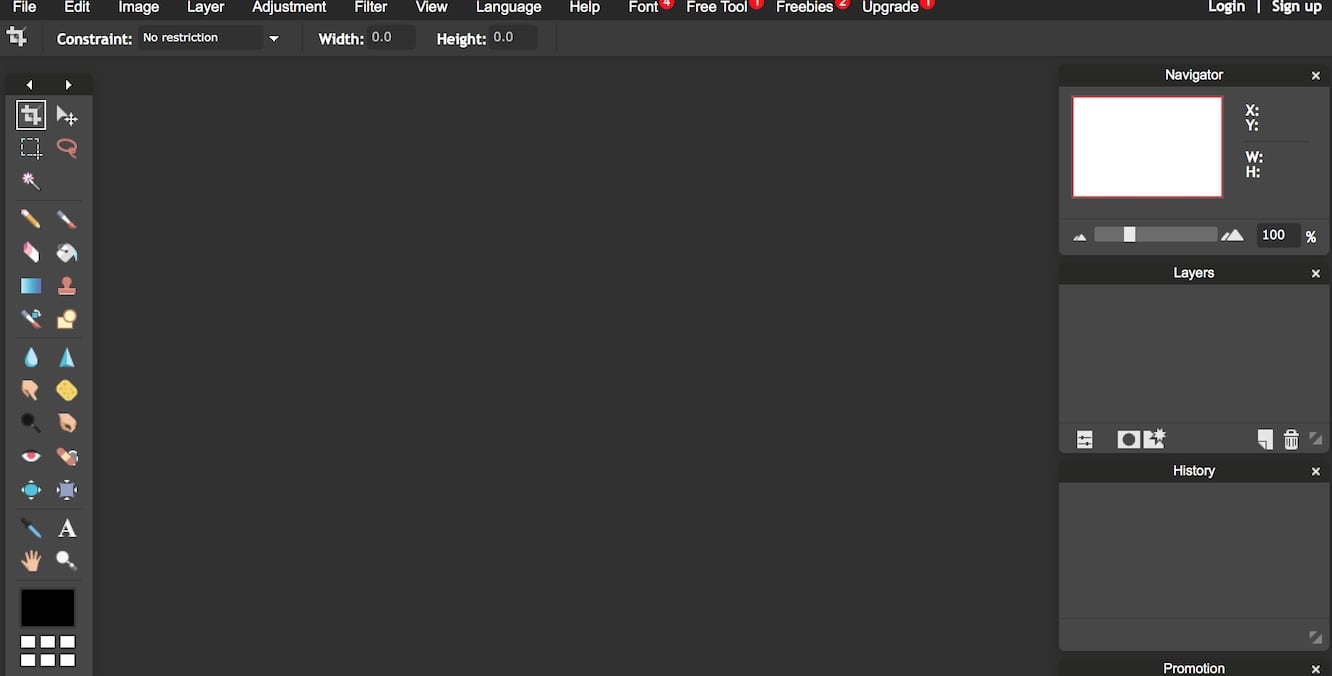
Time is a luxury that not everyone has. Offline editor apps are studded with features but often come with complex installation instructions. For users looking for a fully-featured, convenient online photo editor, things can get a bit messy. Enter, Pixlr Editor.
Presented with a fully Photo-shop style editing interface, the app makes it on our list of best free online photo editors. The features include:
- Generous selection of filters to experiment with
- Support for layers and masks for advanced editing
- Flash-based app, soon to be migrated to HTML5
- Keyboard shortcuts for options like levels and curves
- Allows photos to be imported from Facebook
[su_box title=”pros” box_color=”#00e810″]The user interface is extremely fluid and so is the learning curve. The features and functionality make it an ideal photo editor for short-term tasks. The company is working on an HTML5 based app which will increase the support for browser and devices.[/su_box]
[su_box title=”Cons” box_color=”#e80019″]If your device doesn’t have Adobe Flash in it, then you may need to install it first.[/su_box]
2. Adobe Photoshop Express Editor
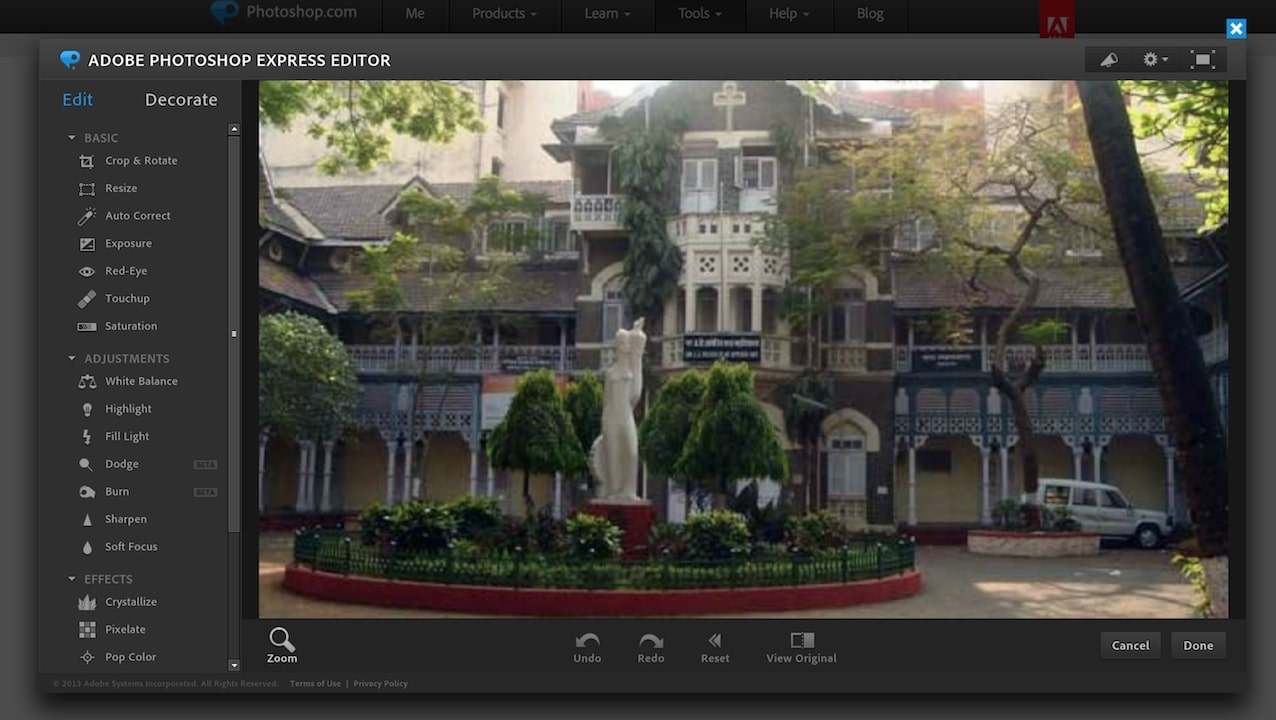
The “Express” in the title may suggest otherwise but this app from Adobe is in fact a free editor. This is a trimmed down version of the actual full-blown Photoshop app. The features include:
- Flash-based interface, soon to be migrated to HTML5
- JPEG support for files smaller than 16MP, no wider than 8191 pixels
- Full-screen view for easy editing
- Clear, uncluttered menus
- Legacy tools include saturation adjustment, cropping, resizing and white balance among other more advanced ones.
[su_box title=”Pros” box_color=”#00e810″]The design is highly commendable and takes away the fear anyone holds against the seemingly endless Photoshop features. Tools are split into two categories: Edit and Decorate. Edit offers basic and advanced tools while Decorate offers Whatsapp-style stickers to fulfill your social media desires.
Adobe has developed the app in a number of platforms such as Web, Android and iOS. Therefore, it is very less likely that you won’t be able to use it due to a compatibility problem.[/su_box]
[su_box title=”Cons” box_color=”#e80019″]Adobe hasn’t stated a definitive date as to when the app would be migrated to HTML5. The only format in which you can work is JPEG. After you’re done editing, you can’t send the file directly to a social media website.[/su_box]
3. Photopea
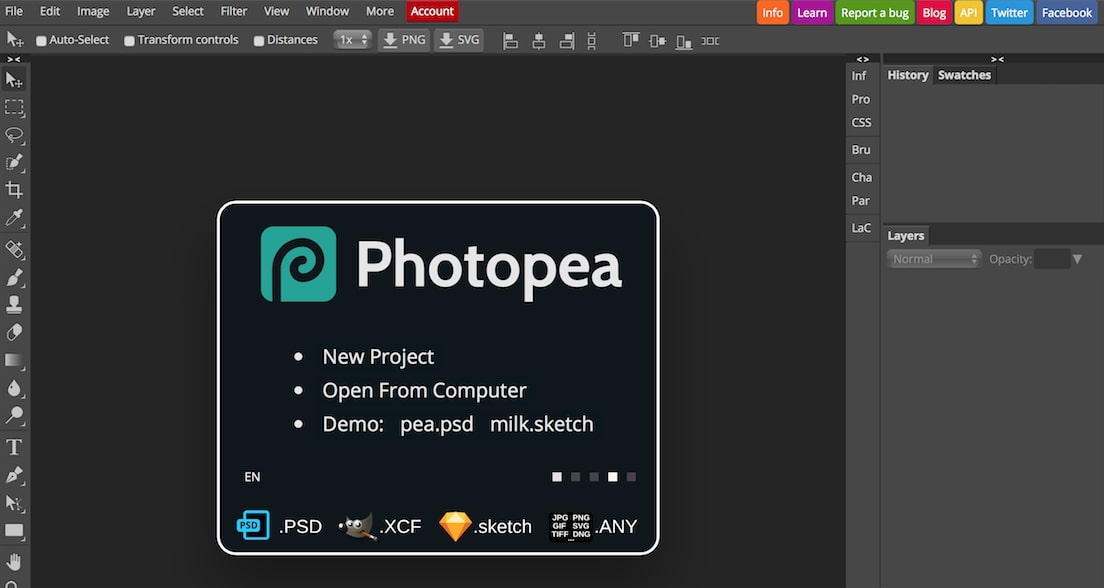
Photopea is your average online photo editor, with one twist: support for Photoshop PSD files. The feature sets it apart from other apps as even Photoshop express fails to offer this.
- HTML5 based web-app meaning no need for extra plugins
- Supports layers, masks, vectors advanced text editing tools
- The user interface is similar to GIMP, the free desktop editing tool
- Availability of keyboard shortcuts simplifies ease-of-use
- Ability to work on multiple images in separate tabs
[su_box title=”Pros” box_color=”#00e810″]First and foremost, the editor supports Photoshop PSD file type. This is an extremely unique feature that comes in handy if you don’t have access to your computer. The interface is very logical, arranged in order and doesn’t have a steep learning curve.[/su_box]
[su_box title=”Cons” box_color=”#e80019″]For the free version, you would have to face the brunt of ads showing up from time to time. Furthermore, there’s little social media integration.[/su_box]
4. Fotor
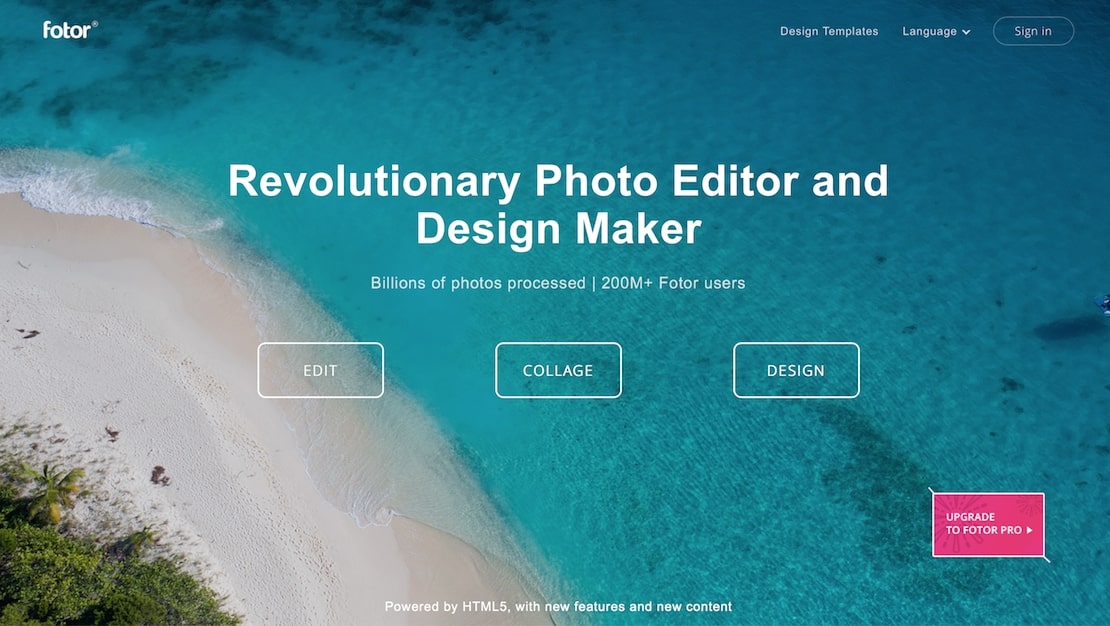
Fotor’s clever use of icons and collapsible toolboxes make it a perfect tool for social media enthusiasts. The free offering includes:
- A one-tap enhance tool to give your pictures a quick boost
- An array of manual tools for more in-depth adjustments
- A file size limit of 8MB
- Flash-based interface
- Stickers, seasonal greetings and custom colors to match the social media generations’ needs
[su_box title=”Pros” box_color=”#00e810″]The user interface is extremely simple with almost no learning curve. The one-tap enhance tool in particular is more than enough for people looking to touch up their display pictures. The inclusion of a wrinkle-smoothing tool with a 1-100 scale makes the experience even more satisfying.[/su_box]
[su_box title=”Cons” box_color=”#e80019″]Flash-based build means some devices may not be compatible. A number of features and functionalities are only available to Premium users. Fotor makes sure you keep seeing them from time to time, marked with Green Diamonds and highlighted colors.[/su_box]
5. Polarr
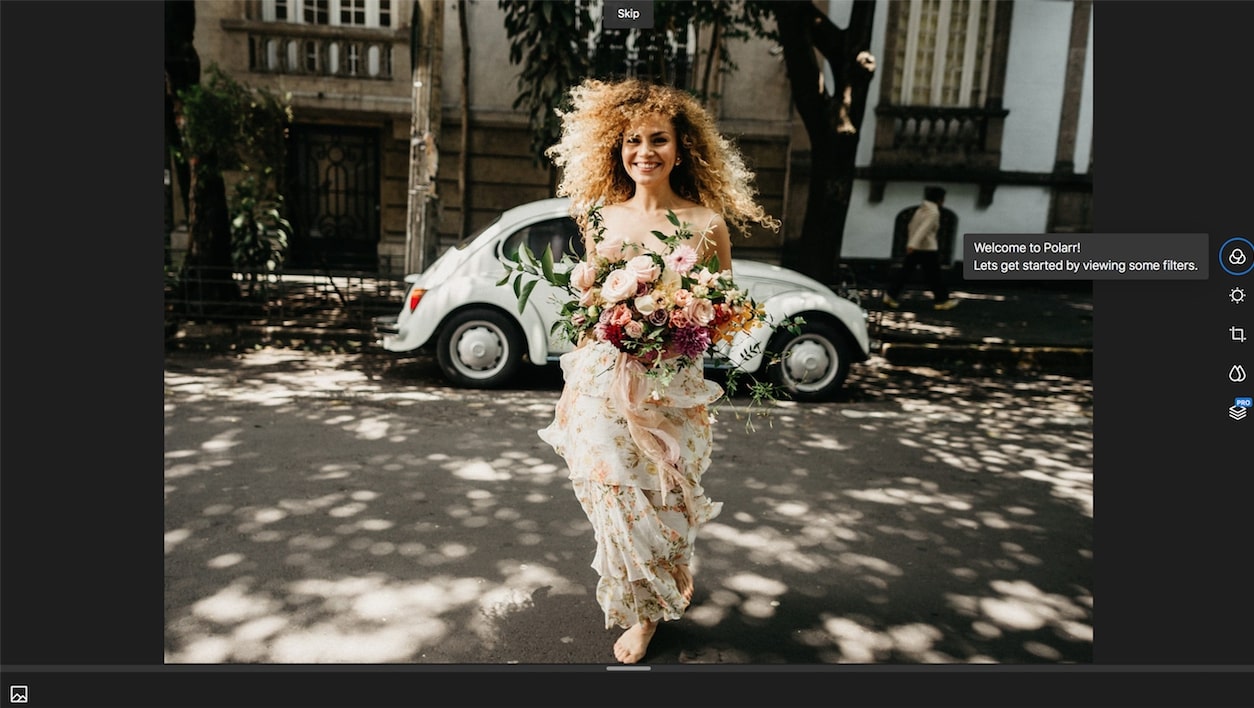
Polarr is available as a premium desktop application and a free web tool. There are of course limitations to the online version, however it is still nothing short of impressive:
- Express and Pro layouts to suit your skill needs (Pro resembles an interface similar to Photoshop)
- Tooltips and keyboard shortcuts make it easy to navigate around
- Editing features include adjustments, brushes, facial identification, filters and cropping
- There are also “guides” through which you can learn a great deal from
- Pictures can be exported in JPEG, TIFF and PNG format
[su_box title=”Pros” box_color=”#00e810″]Almost all features required for decent editing are available in the online, free version. The ability to export pictures in JPEG, TIFF and PNG format is impressive for a free web app. All edits are non-destructive and can be reversed through a History Panel.[/su_box]
[su_box title=”Cons” box_color=”#e80019″]Saving presets and batch exporting is limited to premium subscription. The learning curve for the interface requires some time to get used to.[/su_box]
6. piZap
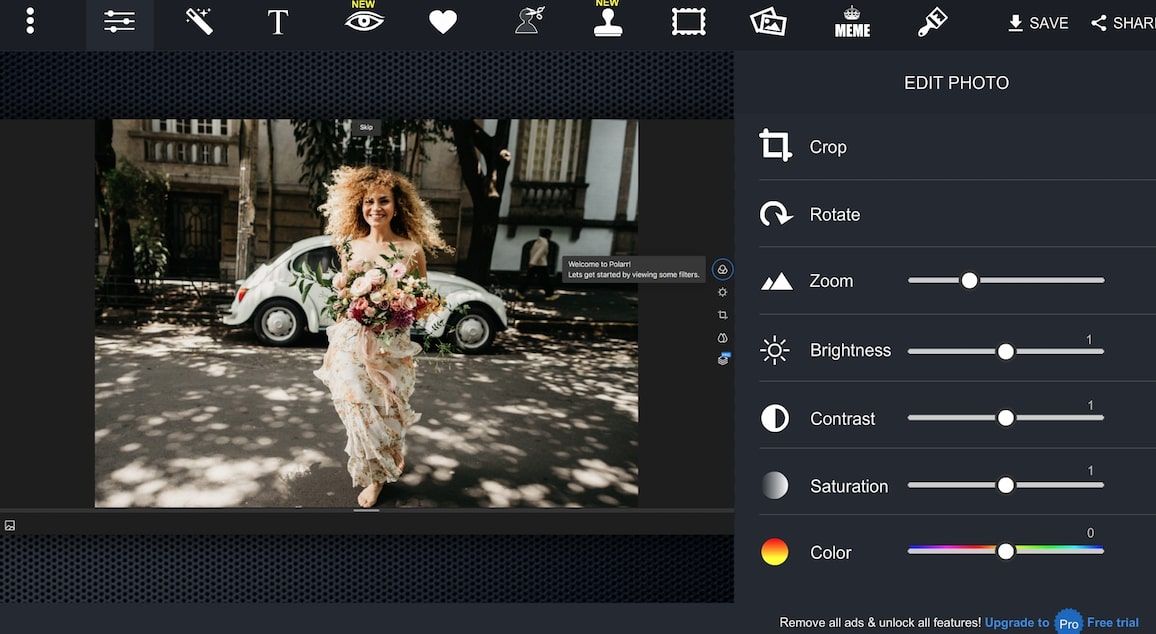
piZap has been designed around the requests and requirements of social media users. Stickers, colorful text, icons and the ability to share right away are crucial parts of the web-based tool.
- Available in both HTML5 and Flash editions
- Ability to choose photos from your Hard drive, Google Photos, Stock Images, etc.
- Interface has a dark design with sliders for adjustments
- Contains an integrated meme tool
- Photos can be shared on almost all major social media networks
[su_box title=”Pros” box_color=”#00e810″]Instead of being an arbitrary editor, piZap caters for the specific requirements of social media users. The ability to choose pictures from multiple sources and share them directly is impressive. As the editor is available in both HTML5 and Flash, no one can complain about the compatibility issues.[/su_box]
[su_box title=”Cons” box_color=”#e80019″]High quality images can only be exported if you buy the premium version.[/su_box]
7. FotoFlexer
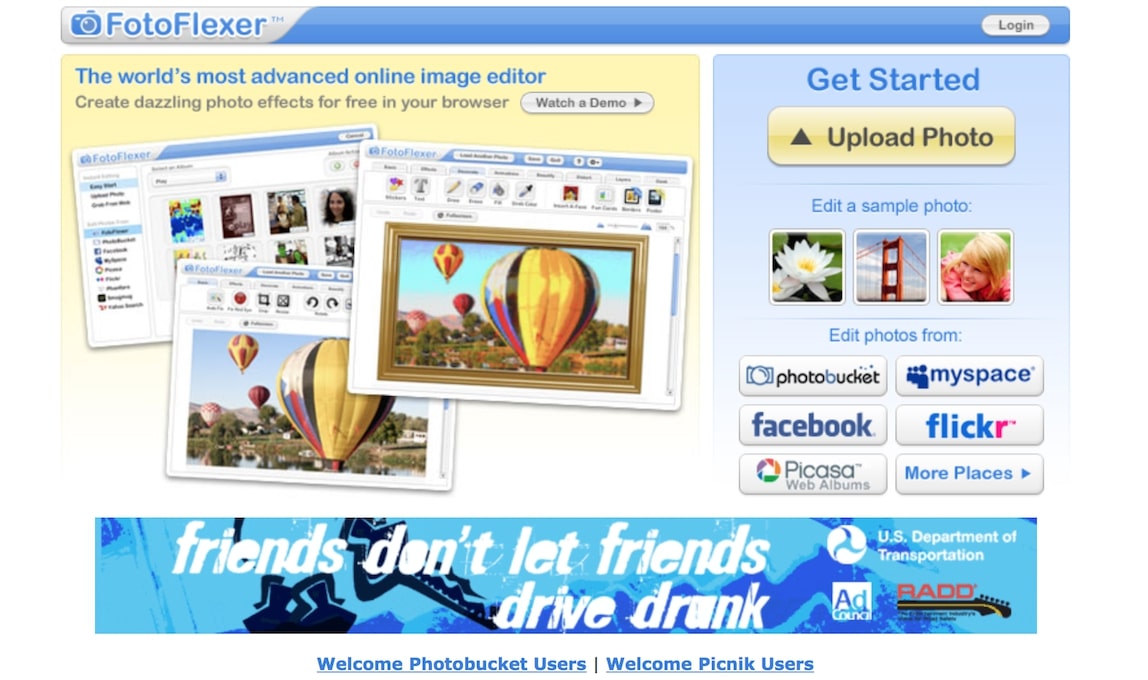
The first impressions aren’t so modern for the tool. However, if you inspect the features closely, you’ll find that it has everything you need.
- Tabbed interface splitting the basic features from the more advanced ones
- Effects toolkit packed with creative filters and some old-fashioned ones
- Smoothening and sharpening tools
- Flash-based build
- 2000s style cheesy glittering text
[su_box title=”Pros” box_color=”#00e810″]The editor is a solid choice for desktop-bound photographers. It contains all the basic and some advanced functions one looks for in an offline photo editor. It even contains 2000s style effects if you’re into that kind of stuff. There’s even a “Geek” tab with some interesting stuff like editing covers and layers.[/su_box]
[su_box title=”Cons” box_color=”#e80019″]The application isn’t fully compatible with all devices due to Flash-based build. In addition, it doesn’t have social media integration in it.[/su_box]
8. Sumo Paint
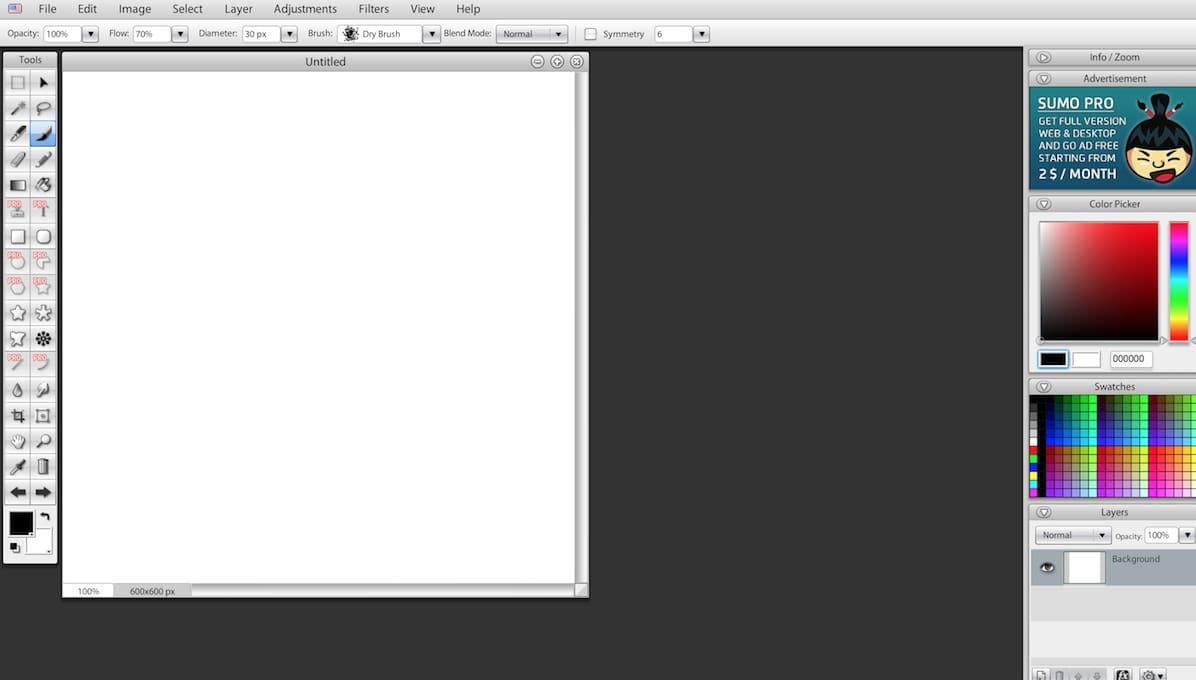
Sumo Paint is a flash-based online editing tool that puts more emphasis on creation of artwork rather than editing.
- Supports layers and offers ways to manipulate them; masking isn’t offered
- Contains a huge choice of customizable brushes with adjustable orientation, gravity and scattering
- Checks all the basic features such as rotation, cropping, smoothing and wet edges
- Cloud server saving functionality removes dependence on offline data storage
- Ad-based model to generate revenue
[su_box title=”Pros” box_color=”#00e810″]The combination of editing and artwork tools makes it great for intermediate level users. Customizable tools give it power similar to that found in Photoshop. At the end, you can even generate a link to your work, making it easier to share it online.[/su_box]
[su_box title=”Cons” box_color=”#e80019″]Some of the fun may be taken away from ads on the site. These can be removed through premium subscription.[/su_box]
9. Photo Raster
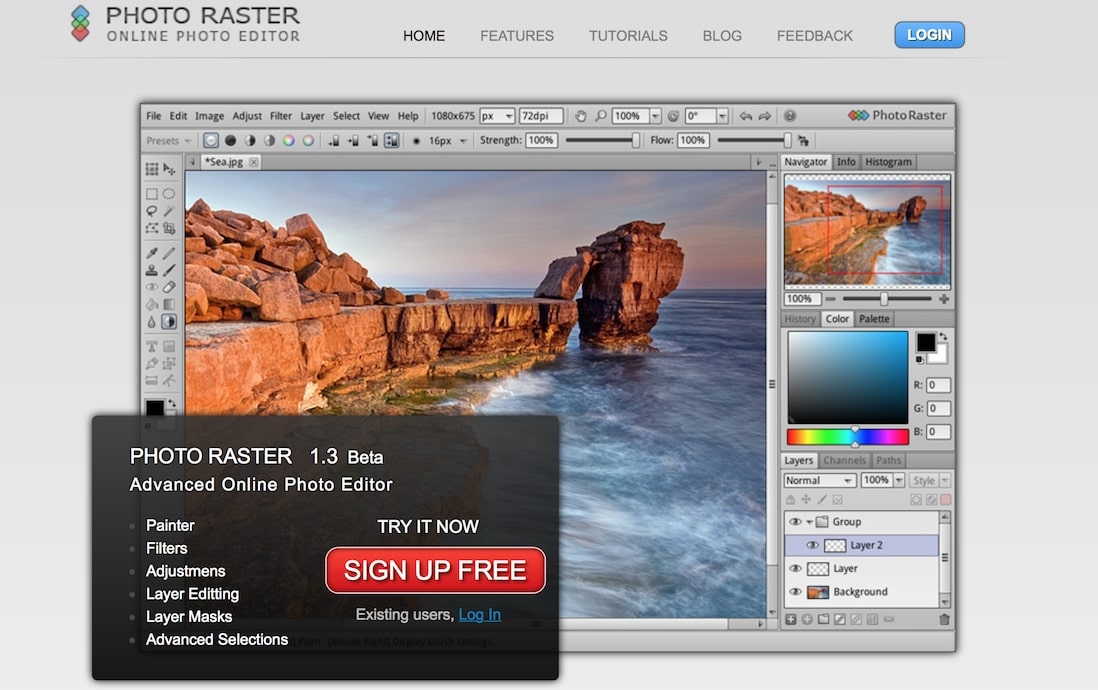
Photo Raster is a Photoshop-alike online tool that requires user registration for an ad-free experience.
- Contains all the basic features such as cropping, layers, filters and adjustments
- The interface is self-explanatory and doesn’t take much time to get used to
- Formats supported include JPEG and PNG
- Has some browser-support issues
- Email-based registration
[su_box title=”Pros” box_color=”#00e810″]The design is simple, and so is the overall concept. You need to provide your email address for an ad-free experience. All basic features are provided within the editor, enough for an average social media edit.[/su_box]
[su_box title=”Cons” box_color=”#e80019″]Photo Raster has been known to freeze when running in Chrome.[/su_box]
10. BeFunky
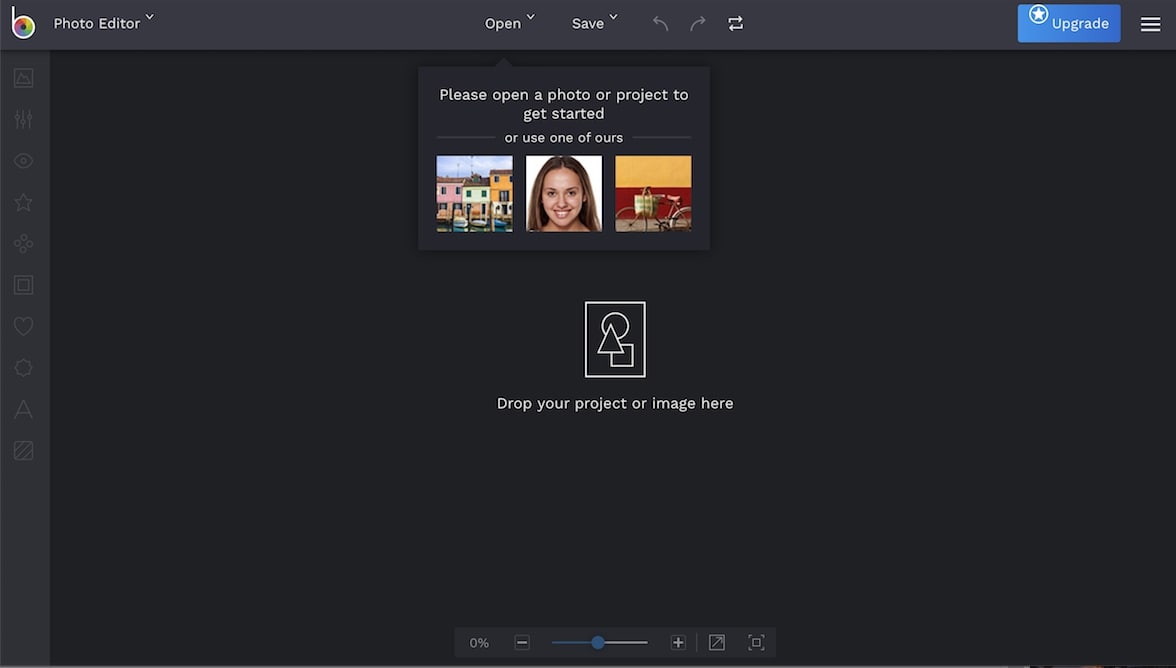
BeFunky is heavily focused on all the features social-media addicted netizens are looking for.
- Collage layouts for Facebook covers, cards, etc.
- A basic editor including features such as cropping, adjustments, filters, etc.
- Images can be imported from Facebook profile
- A decent text editor with a variety of fonts
- Has an “Auto fill” feature to arrange all your images in a collage form for you
[su_box title=”Pros” box_color=”#00e810″]The online editor is perfect for social media users looking for a quick-fix to their pictures. The interface is fluid, while photos can be imported/exported to/from Facebook, Twitter, Flickr, etc.[/su_box]
[su_box title=”Cons” box_color=”#e80019″]Heavy focus on Collage deviates it from the definition of an online photo editor.[/su_box]
Featured Paid Photo Editors
11. Lightroom CC
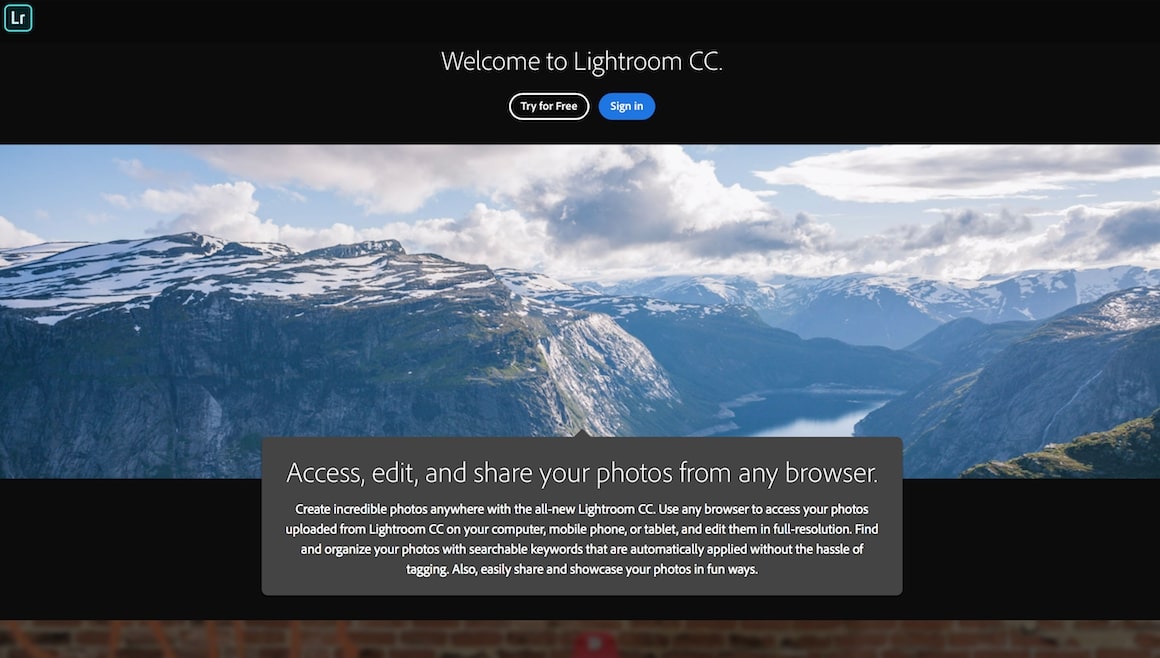
It has been 28 years since Photoshop was first released. It has successfully managed to keep up with the winds of change. Today, Adobe offers Lightroom in addition to Photoshop as part of its Adobe CC suite. If editing photos is your main concern rather than creating artwork, then Lightroom CC is more than enough.
Originally offered as a desktop application (still), Adobe has developed a cloud based (CC) version with the following features:
- Straightforward user interface that can be split into four phases, importing, organizing, editing and sharing
- Arrangement of editing tools in a narrow vertical strip makes them easier to locate
- Slick performance thanks to Cloud-based build
- Contains all major features as the desktop version apart from Camera Calibration panel and Auto mask options
- Android and iOS mobile apps available separately
[su_box title=”Pros” box_color=”#00e810″]Contrary to what one might expect, the interface feels like a breath of fresh air. The performance is smooth, and you won’t have to go through freezes as you may with the desktop experience.
The availability of majority of features and cloud-based storage means local disks can be put out of the equation. There is also an intelligent “Sensei” search system that can help organize your online library.[/su_box]
[su_box title=”Cons” box_color=”#e80019″]Storage costs could escalate as you edit/upload high quality images onto the cloud.[/su_box]
12. Snappa
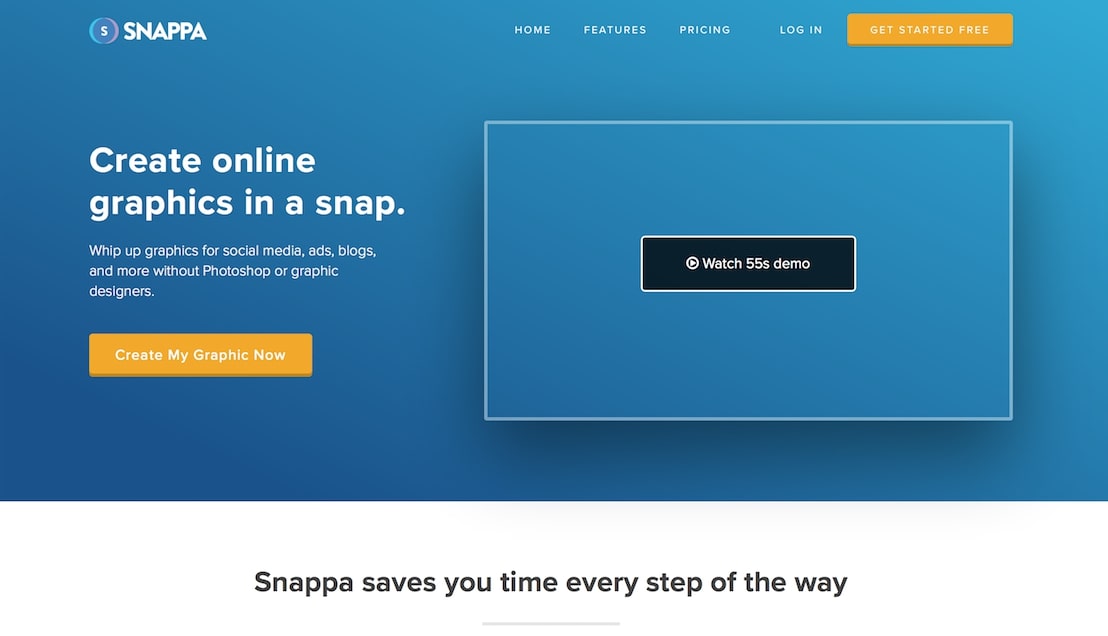
Snappa is a cloud-based editor fit for personal, social media and marketing purposes. The editor is a scaled down version of Photoshop; however, it is powerful enough to cater for the requirements of small teams.
- Contains collaborative tools to help team members save time
- Contains a graphics library for free
- Connects with social media accounts of users
- Slick and simple user interface design
- Has video tutorials for novice users
[su_box title=”Pros” box_color=”#00e810″]A scaled-down version of Photoshop doesn’t mean Snappa isn’t a graphics editor. In fact, it has all the basic and advanced tools you’ll ever need. You can import your own custom fonts, build on professional quality templates and make use of libraries of visual assets. Social media integration is also present along with collaborative tools for small teams.[/su_box]
[su_box title=”Cons” box_color=”#e80019″]The billing is annual, which may be stingy for someone looking to try the software out. [/su_box]
Wrapping It Up
Hopefully this guide on the best free online photo editors has helped you find the right editor for your needs. While most of these editors can do JPEG and PNG, only some can do RAW photos. All of these options are available on both Mac and Windows computers. If you want to learn more about photography, you can view my guide on the best photography courses here. Thanks for reading!